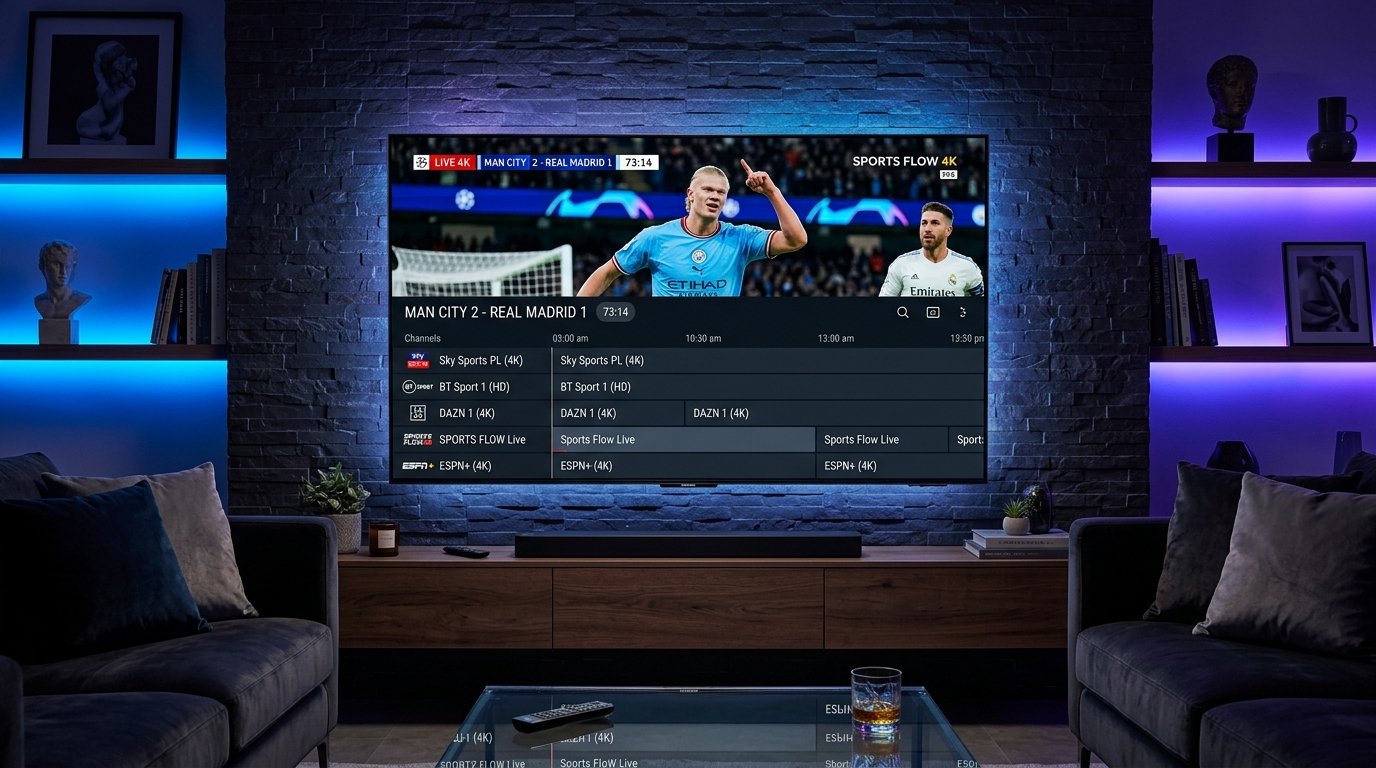
Samsung Smart TVs continue to dominate the global living room market with their vivid Neo QLED and OLED panels, but unlike Android-based streaming devices, they run on Samsung’s proprietary Tizen OS. This means you cannot simply sideload arbitrary Android APKs. However, setting up a high-performance, crystal-clear 4K IPTV stream on your Samsung TV in 2026 is faster and easier than ever once you know the exact verified apps available directly on the official Samsung Smart Hub.
Whether you want to watch the English Premier League, UEFA Champions League, live PPV sports, or thousands of international channels and 4K on-demand movies, this complete step-by-step tutorial walks you through the top 3 IPTV players for Samsung Tizen OS, how to configure your playlist via Xtream Codes, and how to optimize your network settings for zero buffering.
Top 3 IPTV Players for Samsung Smart TV (Tizen OS) in 2026
Because Samsung strictly curates its Smart Hub app store, you must choose a reliable, modern media player that supports hardware acceleration and fast channel zapping:
| IPTV Player App | Availability | Connection Method | Best Feature | Overall Rating |
|---|---|---|---|---|
| IBO Player Pro | Samsung App Store | MAC Address + Web Portal | Ultra-fast channel switching & modern UI | âââââ 9.8/10 |
| IPTV Smarters Pro | Smart Hub / Developer | Xtream Codes API & M3U | Multi-screen & comprehensive EPG guide | ââââ½ 9.4/10 |
| BOB Player / Smart IPTV | Samsung App Store | Device ID / MAC Key | Lightweight and simple layout | ââââ☆ 8.9/10 |
Method 1: How to Setup IBO Player Pro on Samsung Smart TV (Recommended)
IBO Player Pro has emerged in 2026 as the undisputed #1 IPTV media player for Samsung Tizen OS. It is lightweight, supports full 4K 60FPS video decoding, and syncs your playlist in seconds without complex on-screen typing.
Step 1: Install IBO Player from Samsung Smart Hub
- Turn on your Samsung TV and press the Home button on your remote.
- Navigate to the Apps icon (Samsung Smart Hub App Store).
- Click the search icon (magnifying glass) at the top right and type “IBO Player”.
- Select IBO Player Pro and click Install / Download.
- Once installation completes, click Open.
Step 2: Note Down Device MAC Address & Device Key
Upon launching IBO Player for the first time, your TV screen will display two critical pieces of information:
- Device MAC Address (e.g.,
00:1A:79:XX:XX:XX) - Device Key (a unique 6-digit or alphanumeric security key)
Leave your TV on this screen or snap a quick photo with your smartphone.
Step 3: Upload Your Playlist via the Web Portal
- On your smartphone, tablet, or computer, open your browser and visit the official portal:
https://iboplayer.com/device/login. - Enter your Samsung TV’s MAC Address and Device Key, then click Login.
- Click on “Change Playlist” or “Add XC Playlist” (Xtream Codes API).
- Enter your credentials provided with your 4K IPTV subscription:
- Playlist Name: 4K IPTV Premium
- Server URL / Host: (Your provided server URL)
- Username: (Your subscription username)
- Password: (Your subscription password)
- Click Save. Return to your Samsung TV, press Reload / Refresh inside the IBO Player app, and all 20,000+ live 4K channels, sports categories, and on-demand movies will load instantly!
Method 2: How to Setup IPTV Smarters Pro on Samsung TV
If you prefer the familiar interface of IPTV Smarters Pro, it is also supported on most Samsung Smart TV models manufactured from 2017 to 2026 running Tizen 3.0 or higher.
- Open the Samsung Apps Store on your television.
- Search for “IPTV Smarters Pro” (or simply “Smarters Pro”).
- Click Install and launch the application.
- Accept the terms of service agreement.
- Select “Load Your Playlist or File/URL” or “Login with Xtream Codes API” (Recommended).
- Input your 4K IPTV account credentials and click Add User.
- The app will automatically download the real-time EPG electronic TV guide and categorize live sports, entertainment channels, and 4K cinema feeds.
Tip: For a detailed side-by-side performance comparison of client apps, read our in-depth analysis on the best IPTV according to Reddit cord-cutter reviews.
How to Stop Buffering on Samsung Smart TV: 4 Essential Tweaks
Samsung Smart TVs have powerful displays, but their built-in wireless network cards and DNS resolvers can occasionally cause micro-stutters during high-bitrate 60FPS sports broadcasts. Apply these four proven optimizations for a flawless stream:
1. Use an Ethernet Cable Over Wi-Fi
Connecting your Samsung TV directly to your home router with a Cat6 Ethernet cable eliminates wireless interference and packet loss. Even if your Wi-Fi tests fast, wireless ping jitter during live events triggers buffer bloat.
2. Change Samsung TV DNS to Cloudflare (1.1.1.1)
Many internet service providers (ISPs) intentionally throttle media streaming traffic via DNS manipulation. You can bypass this directly inside Samsung Tizen settings:
- Go to Settings > General > Network > Network Status.
- Select IP Settings.
- Change DNS Setting from Get Automatically to Enter Manually.
- Enter Primary DNS:
1.1.1.1(or Google DNS:8.8.8.8). - Click OK and restart your television. For more advanced network tuning, check our comprehensive guide on how to stop IPTV freezing and buffering in 2026.
3. Clear App Cache and Reset Smart Hub Memory
Over time, cached EPG guide data fills up Samsung TV flash memory. To clear it:
- Navigate to Settings > Support > Device Care.
- Click Manage Storage, find your IPTV player app, select View Details, and click Clear Cache.
4. Connect to an Enterprise-Grade 4K Stream Provider
No software tweak can fix an overloaded, low-tier reseller server. True 4K sports streaming requires dedicated multi-CDN transit routes with 99.8% anti-freeze edge load balancers. Discover why cord-cutters trust 4K IPTV IT for uncompressed 4K 60FPS sports and international broadcasts with instant activation.
Frequently Asked Questions (FAQ)
Can I install TiviMate directly on Samsung Smart TV?
No. TiviMate is strictly designed for Android TV and Fire OS. It cannot run natively on Samsung’s Tizen operating system. If TiviMate is your preferred media player, we recommend connecting an Amazon Fire TV Stick 4K Max to one of your Samsung TV’s HDMI ports (follow our Firestick IPTV setup guide). Otherwise, IBO Player Pro is the closest equivalent for native Tizen performance.
Why is an IPTV app missing from the Samsung Smart Hub store?
Samsung restricts certain media players depending on your Smart TV’s geographical region setting. If an app like IBO Player or Smart IPTV doesn’t appear in search, you can temporarily change your Samsung TV App Store region (Service Country) to the United States or United Kingdom in your TV’s system settings.
Do I need to leave my PC on to stream IPTV on Samsung TV?
Not at all. Once you upload your playlist credentials to your player’s web portal, your Samsung Smart TV connects directly to the 4K IPTV cloud servers. Your PC or phone is only used for the initial 2-minute setup.
Ready to experience pure 4K UHD streaming on your Samsung Smart TV? Get your instant 4K IPTV subscription today and unlock 20,000+ live premium channels with zero buffering!