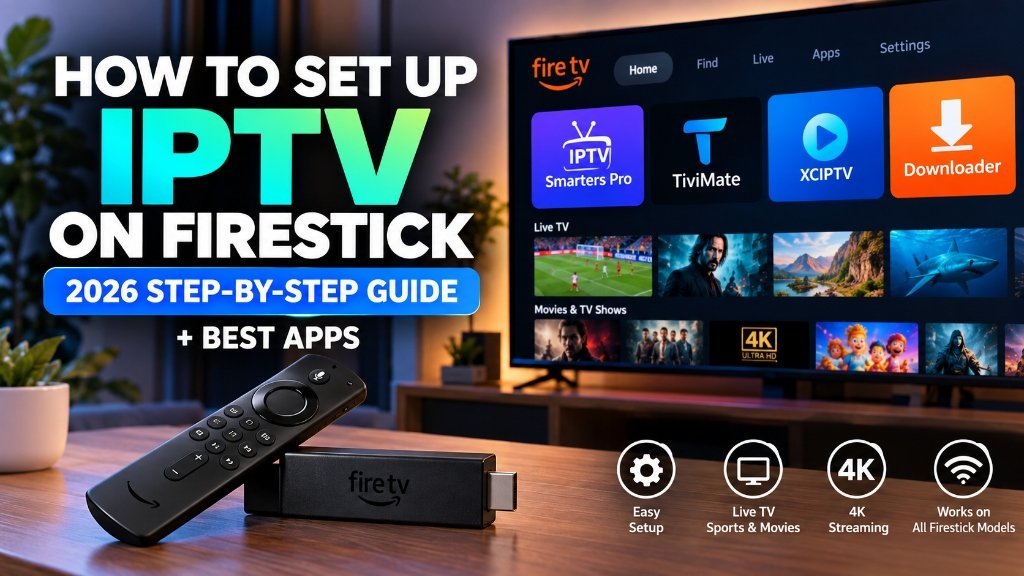
Streaming live television through modern IPTV applications has become one of the most popular ways to enjoy thousands of live channels, sports, and on-demand content on television screens. Among all streaming hardware available today, the Amazon Fire TV Stick remains the undisputed industry favorite due to its powerful Android-based Fire OS architecture, budget-friendly price point, and broad compatibility with premier media players. If you are wondering how to set up IPTV on Firestick quickly and safely, this complete 2026 step-by-step tutorial will guide you through the entire process from initial device configuration to advanced playback optimization.
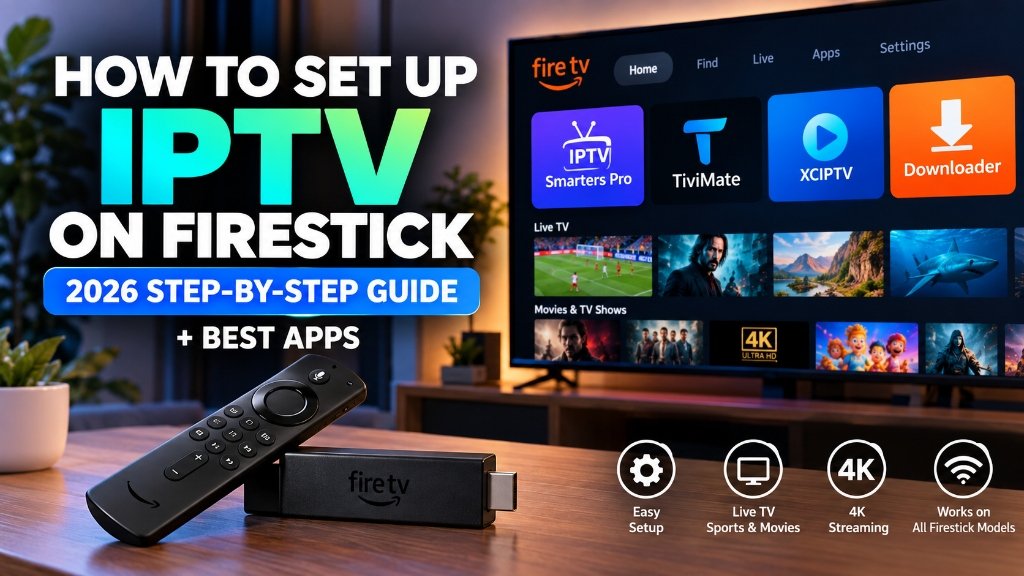
Quick Summary: Prerequisites for Firestick IPTV Setup
Before diving into the installation steps, having the necessary hardware and account credentials prepared will make your IPTV Firestick setup smooth and hassle-free.
What You Need Before You Start
- A Compatible Amazon Fire TV Device: Any modern Fire TV Stick (Fire TV Stick HD, Fire TV Stick 4K, Fire TV Stick 4K Max, or Fire TV Cube).
- A High-Speed Internet Connection: We recommend a stable connection of at least 25 Mbps for HD streaming, and 35+ Mbps if you intend to stream live sports or 4K Ultra HD broadcasts.
- The Downloader App: Available directly and for free from the official Amazon Appstore.
- Active Subscription Credentials: Details provided by your IPTV provider, ideally using an Xtream Codes API login (consisting of a Server URL, Port, Username, and Password) or an M3U playlist link. If you are currently evaluating subscriptions, you can explore premium packages from 4K IPTV IT with thousands of live international channels and sports packages.
Fire TV OS Compatibility (Fire OS 7, Fire OS 8 & Fire TV Cube)
Amazon’s Fire OS operating system is built on top of the Android Open Source Project (AOSP). This means that virtually all prominent Android IPTV applications—including IPTV Smarters Pro, TiviMate, and XCIPTV—operate natively on your Firestick. While entry-level models like the Fire TV Stick Lite and standard HD models handle 1080p streams easily, the Fire TV Stick 4K Max and Fire TV Cube feature faster quad-core processors, expanded RAM (2GB), and hardware support for modern AV1 and HEVC (H.265) video codecs, making them the superior choice for high-frame-rate sports streaming without frame drops. If you are comparing streaming options for cord-cutters, check our detailed analysis of the best 4K IPTV subscription for cord-cutters.
Step 1: Prepare Your Fire TV Stick (Enable Developer Options & Unknown Sources)
Because third-party media players are specialized streaming software, they are installed through the official Downloader utility rather than the standard Amazon consumer store. To allow your Firestick to install these applications, you must first enable installation permissions.
How to Reveal Developer Options on Fire OS 7 and Fire OS 8 (The 7-Click Trick)
On recent Fire OS updates, Amazon hides the “Developer Options” menu by default for safety. Unhiding it takes less than ten seconds:
- From your Fire TV Home screen, navigate to the Settings icon (the gear icon on the far right).
- Scroll down and select My Fire TV (or Device & Software depending on model).
- Click on About.
- Highlight the first item displaying your device name (e.g., Fire TV Stick 4K Max).
- Press the Center Select button on your remote 7 times consecutively.
- A notification message will appear at the bottom of the screen stating: “No need, you are already a developer.”
- Press the Back button on your remote once; you will now see Developer Options listed under the About menu.
Install the Downloader App from the Official Amazon Appstore
- From the Home screen, click the Find (Search) icon.
- Type or speak “Downloader” using your Alexa Voice Remote.
- Select the orange Downloader by AFTVnews tile.
- Click Download or Get to install the application directly to your Fire TV.
Grant Unknown App Installation Permissions
- Return to Settings > My Fire TV > Developer Options.
- Select Install Unknown Apps (or Apps from Unknown Sources on older models).
- Locate Downloader in the list and click it to turn the permission to ON.
Step 2: Choose and Install the Best IPTV Player for Firestick
An IPTV player is the software interface that organizes your subscription’s live TV channels, electronic program guides (EPG), movies, and series into an interactive television experience. Below are the three most proven and reliable media players for Fire TV devices.
Method A: Installing IPTV Smarters Pro (Most Popular & Beginner-Friendly)
IPTV Smarters Pro is celebrated worldwide for its clean layout, multi-screen functionality, and intuitive login screens. If you also use Samsung or LG smart televisions in other rooms of your home, you can read our companion tutorial on setting up IPTV Smarters Pro on Samsung Smart TV.
- Open the Downloader application from your Fire TV Apps row.
- When prompted on first launch, click Allow to grant storage permissions.
- In the central URL text box, enter the official download URL or verified numeric Downloader shortcode for IPTV Smarters Pro (such as
https://www.iptvsmarters.com/smarters.apk). - Click Go. The APK installation file will begin downloading automatically.
- Once downloaded, click Install in the system prompt.
- After installation completes, click Delete twice to remove the installation file and preserve your Firestick’s internal storage.
Method B: Installing TiviMate IPTV Player (The Premium Power-User Choice)
For users who desire the exact feel of a traditional satellite or cable set-top box, TiviMate IPTV Player is widely considered the gold standard on Firestick. It provides instantaneous channel switching, extensive EPG grid customization, scheduled recordings, and robust multi-view capabilities.
- Launch Downloader on your Firestick.
- Type the official TiviMate direct APK URL (or official TiviMate Downloader code
tivimate.com) into the URL field. - Select Go to fetch the latest stable release.
- Select Install when the Fire OS package installer appears.
- Once finished, open TiviMate and click Add Playlist to proceed to setup.
Method C: XCIPTV Player (Clean Alternative for Multi-Screen Streaming)
XCIPTV is another lightweight player powered by dual built-in players (ExoPlayer and VLC). It has an attractive modern dashboard that separates Live TV, Movies, and Series into dedicated interactive widgets. Like Smarters Pro and TiviMate, it is installed via Downloader in under two minutes.
Step 3: Configure Your IPTV Subscription on Firestick
Once your preferred IPTV player is installed on your Fire TV device, the final step is linking your active subscription. Reliable services usually provide two connection methods: Xtream Codes API or an M3U Playlist URL.
Connecting via Xtream Codes API (Strongly Recommended)
The Xtream Codes API is the easiest and most dependable connection method because it automatically configures your channel streams, VOD library, and Electronic Program Guide (EPG) without requiring you to type lengthy web links on your remote.
- Open IPTV Smarters Pro (or TiviMate) and select Log in with Xtream Codes API.
- Any Name: Enter any label you prefer (e.g., My 4K IPTV).
- Username: Enter the exact username sent by your provider.
- Password: Enter your subscription password.
- Server URL / Portal: Enter the provider server address including the port number (e.g.,
http://domain.com:8080). - Click Add User or Connect. The application will synchronize live channels, movie posters, and programming data in seconds.
Connecting via M3U Playlist URL or File
If your provider supplied an M3U link, select Load Your Playlist or File/URL in your player. Paste the full M3U web address into the playlist field. To learn more about how playlists structure audio and video stream addresses, review our comprehensive understanding 4K M3U lists guide.
Setting Up the Electronic Program Guide (EPG) for Live TV
An accurate EPG is essential for sports fans and channel surfers. When using Xtream Codes, your EPG URL is built-in automatically. In player settings, make sure to enable “Auto-update EPG on launch” and set the timezone offset to match your local region (e.g., UTC-5 for US Eastern Time) so your TV listings line up accurately with live broadcasts. If you are specifically interested in live sports channels, check out our guide to streaming live USA sports channels in 4K.
Ready to Test Premium 4K Streaming on Your Firestick?
Get instant WhatsApp setup with 25,000+ live channels, 4K 60FPS sports networks, and anti-freeze technology.
How to Optimize Firestick for Lag-Free 4K IPTV Streaming
The hardware on an Amazon Fire TV Stick is compact, so optimizing your player and system settings helps maximize smoothness and eliminate video stutter.
Switching Video Decoders: Hardware vs. Software (ExoPlayer vs. VLC)
Most top IPTV players give you a choice of video decoding engines:
- Hardware (HW / ExoPlayer): Uses the Fire TV’s dedicated graphics processing chip. This provides the smoothest 4K 60FPS streaming with the lowest CPU temperature and lowest latency. Keep Hardware decoding as your default.
- Software (SW / VLC): Forces the processor to decode video via software. If you encounter an audio desynchronization error or a black screen on an older audio format (such as AC3 or DTS), switching that individual channel to Software decoding usually resolves the issue.
Clearing App Cache and Freeing Up Fire TV Storage
Firesticks have limited onboard storage (typically 8GB to 16GB total). When an IPTV player downloads guide data and channel logos over several weeks, cached data can accumulate:
- Go to Settings > Applications > Manage Installed Applications.
- Scroll down to your IPTV app (e.g., IPTV Smarters Pro or TiviMate).
- Click Clear Cache (do not click “Clear Data” unless you wish to reset your login information).
- Uninstall unused streaming applications to keep at least 1.5GB of free storage on your Fire TV.
Network Optimization: 5GHz Wi-Fi vs. Official Fire TV Ethernet Adapter
Standard 2.4GHz Wi-Fi is susceptible to interference from household electronics and walls. For buffer-free 4K streams:
- Connect your Firestick to your router’s 5GHz Wi-Fi band, which offers significantly higher data throughput and lower latency.
- Use the HDMI extender cable included in your Fire TV box; positioning the stick slightly away from the metal back of your TV reduces electromagnetic Wi-Fi shielding.
- For the ultimate stability during peak live sports broadcasts, invest in the official Amazon Ethernet Adapter for Fire TV to maintain a direct wired connection.
Common Firestick IPTV Errors and How to Fix Them
1. “App Not Installed” or Parse Error on Fire TV
Cause: Incomplete APK download, incompatible architecture, or insufficient free storage space.
Fix: Check that your Firestick has at least 1GB of free space. Redownload the APK through Downloader using the direct official link, ensuring the download reaches 100% before clicking Install.
2. Audio Out of Sync or Black Screen on Live Channels
Cause: Audio format mismatch (e.g., Dolby Digital Plus or surround sound passthrough) with TV speakers.
Fix: Navigate to Firestick Settings > Display & Sounds > Audio > Surround Sound and select PCM or Stereo. Inside your IPTV player settings, switch the audio decoder to software or toggle hardware acceleration.
3. Playback Freezing or Loop Buffering During Peak Hours
Cause: Local network congestion or Internet Service Provider (ISP) streaming throttling during high-demand sporting events.
Fix: Restart your Firestick and home router. If throttling is occurring on your residential broadband, testing your connection via a reputable VPN service or changing your Firestick DNS to Google DNS (8.8.8.8 and 8.8.4.4) can often restore full streaming throughput. When choosing your provider, consult our guide to top affordable IPTV providers in the USA.
Frequently Asked Questions (FAQ)
Is it safe and legal to install IPTV players on Firestick?
Yes. Legitimate IPTV players such as IPTV Smarters Pro, TiviMate, and XCIPTV are legal software players designed to decode media streams. They do not host or distribute content on their own. As long as you use legal, verified IPTV subscriptions with your own valid credentials, streaming on Fire TV devices is secure and standard practice.
Why is “Developer Options” missing from my Fire TV Settings?
On recent Fire OS updates (Fire OS 7.2.8.5+ and Fire OS 8), Amazon hides Developer Options by default. To unlock it, navigate to Settings > My Fire TV > About, highlight your device name, and press the center select button on your remote 7 times consecutively until you see the notification “No need, you are already a developer.”
Which is better for Firestick: TiviMate or IPTV Smarters Pro?
Both are premier options. IPTV Smarters Pro is best for beginners due to its simple login interface and built-in multi-screen support. TiviMate is preferred by power users because its EPG grid layout closely mirrors traditional premium cable interfaces, offers fast channel zapping, and features superior hardware decoding customization.
What internet speed is required to stream 4K IPTV on Firestick?
A stable connection of at least 25 Mbps to 35 Mbps is recommended for smooth 4K Ultra HD live streams at 60 FPS. For households with multiple devices streaming simultaneously, an 80+ Mbps connection on a 5GHz Wi-Fi band or a wired Ethernet connection ensures consistent quality.
How do I fix IPTV buffering and stuttering on Firestick?
To resolve buffering: (1) In player settings, switch video decoder from Software to Hardware (HW); (2) Go to Firestick Settings > Applications > Manage Installed Applications, select your IPTV player, and click Clear Cache; (3) Connect your Firestick to a 5GHz Wi-Fi band instead of 2.4GHz; and (4) Restart your router and Fire TV Stick.
Conclusion: Start Streaming on Fire TV Today
Setting up an IPTV player on your Amazon Firestick is a straightforward process that unlocks an extraordinary level of entertainment flexibility. By taking advantage of Developer Options, installing a dependable media player like IPTV Smarters Pro or TiviMate, and connecting with Xtream Codes API credentials, you can transform your Fire TV Stick into a complete home streaming powerhouse. Optimize your network on the 5GHz frequency and enjoy reliable, high-definition entertainment across all your favorite live channels.