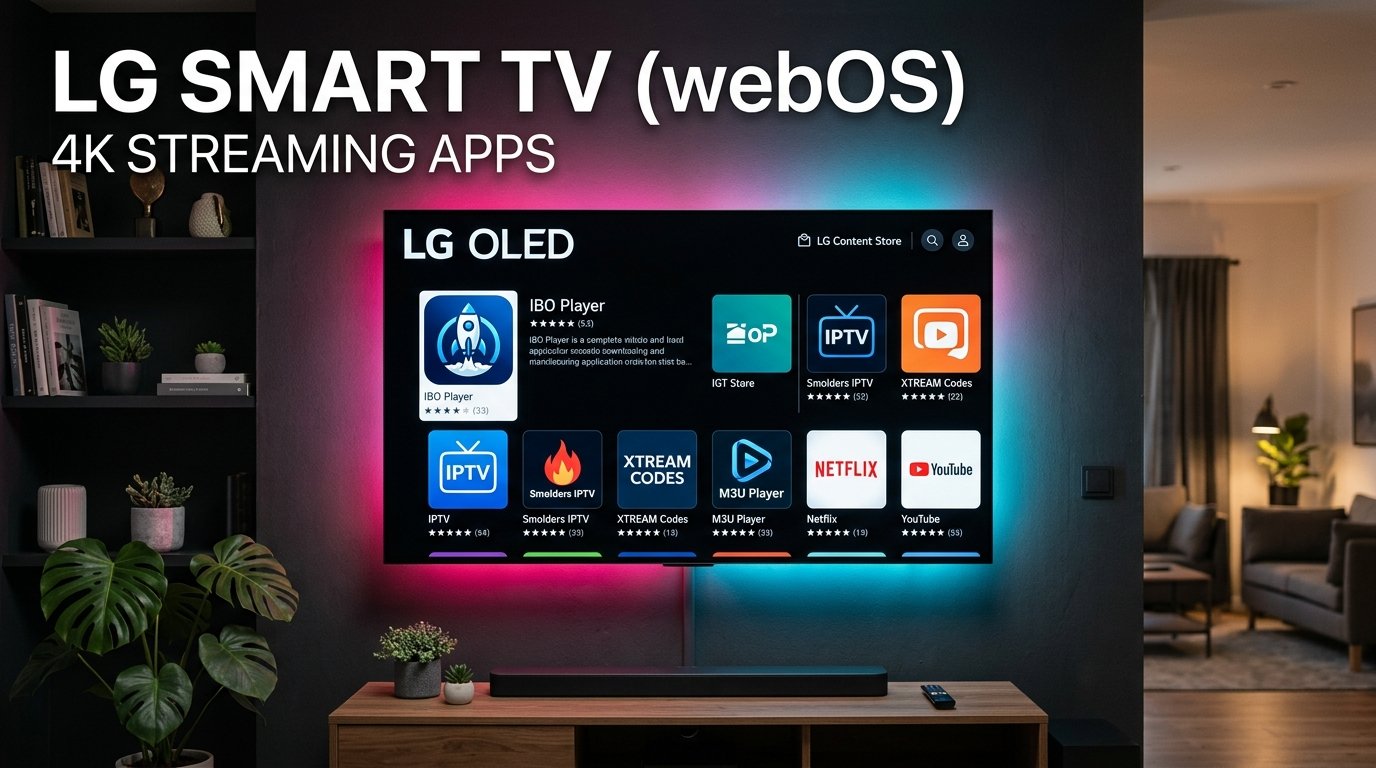
LG’s OLED and QNED displays deliver some of the deepest blacks and most vibrant colors in the television market. However, because LG TVs run on webOS rather than Android TV, installing IPTV applications requires choosing players available in the official LG Content Store.
If you don’t own an external streaming dongle like a Firestick, you can stream 25,000+ live channels directly using dedicated webOS applications. In this 2026 tutorial, we compare the top LG IPTV apps and guide you step-by-step through setting up 4K IPTV IT on your LG television.
Top 3 IPTV Applications for LG Smart TVs (webOS)
- IBO Player (Recommended): Fast, highly responsive, supports 4K HDR streams, modern EPG grid, and effortless playlist management via web portal.
- IPTV Smarters Pro: Clean category dashboard for Live TV, Movies, and Series. Learn how it performs compared to other players in our TiviMate vs Smarters Pro guide.
- Nanomid Player: High security, built-in VPN compatibility, and excellent audio decoder support.
Step-by-Step Setup on LG webOS
- Open the LG Content Store on your television using your Magic Remote.
- Search for IBO Player or IPTV Smarters and click Install.
- Launch the app to locate your TV’s Device ID / MAC Address and Device Key on screen.
- Send your Device ID to our 24/7 WhatsApp support, or input your Xtream Codes credentials directly.
- Restart the application to enjoy seamless 4K channels and automated 7-day EPG guides!